Manage your prescriptions with Kaiser Permanente

It’s easy to stay on track with your medications with our convenient ordering and delivery options. When it comes to refilling or transferring your prescriptions, we’re here to help you and your family. 

Refill your prescriptions with ease

Never miss a prescription refill again with Kaiser Permanente. Sign up to get reminders by text, email, or mobile app when it's time to refill your prescriptions. If you haven’t already transferred your prescription, click here.


Refill a prescription

Sign in or register to get started. We’ll take care of the rest.1

Sign up for auto refills

Get your prescriptions automatically refilled and delivered.2

Refill a prescription: How it works

Laptop displaying prescription order

Step 1

Sign in to kp.org/pharmacy. Select a prescription and click “Add to Order."3

Postage envelope with prescription bottle

Step 2

Click "Fill Order." Choose a delivery method and address. Before you check out, you’ll see any savings available when you order your prescription for delivery.

Laptop displaying confirmed order

Step 3

Select a payment method and submit your order. Once submitted, you can check your order status online.

Transfer a prescription: How it works

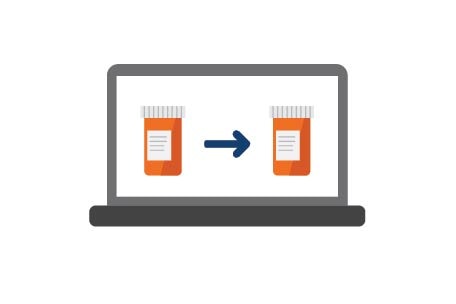
Laptop displaying prescription bottle transition

Step 1

Go to kp.org/newmember and click on "Transfer prescriptions." Existing
members should fill out this form.2

Laptop displaying confirmed steps

Step 2

Follow prompts to sign in to kp.org.

Order form with prescription bottles

Step 3

Click "Continue," fill out the form provided, and submit.

Take a task off your list with auto refills

With auto refills, you get your prescriptions delivered right to your door — right when you need them. Once you sign up, we’ll refill and deliver your medications automatically, texting you when they’re on the way.  

Set up auto refills on kp.org
Step 1:
Sign in to kp.org/auto-refill.
Step 2: Select “Add prescriptions” for eligible medications. 
Step 3: Choose “Set up Auto Refill” and then “Confirm Auto Refill” to sign up. 

Use the Kaiser Permanente app to set up auto refills
Step 1: 
Sign in to the app and choose “View Pharmacy.” 
Step 2: Scroll down and select “Auto Refill.”  
Step 3: Select “Add Prescriptions.” 
Step 4: Choose “Set up Auto Refill” and then “Confirm Auto Refill” to sign up.

Note: Auto refilling a prescription stops refill reminders for that medication. 


Written prescription behind two pill bottles
Woman using cell phone with symbols around her


Sign up for refill reminders and status updates

You won’t have to worry about remembering to order prescription refills again. You can get refill reminders by text, email, or mobile app notification. You can even order your refill by replying directly to a text message.4

Step 1: Sign in to kp.org
Step 2: Go to “My Account” and choose “Profile & Preferences.”
Step 3: Choose “Notifications.”
Step 4: Click the “Pharmacy” drop-down menu to choose which notifications you’d like to receive.

Frequently asked questions

We’re always here to help with any questions you may have about your prescriptions.

Throughout the pharmacy experience, you’ll see the estimated price of filling your prescription so can have peace of mind when checking out. 

If you are a new member, please visit kp.org/newmember to transfer your prescription. If you're an existing member, request a prescription transfer on kp.org .
For help transferring your prescription, please call Kaiser Permanente Member Services .

You can get most prescriptions delivered within a few days at no extra cost. Choose “Ship to address” when ordering your prescription refill.  Get details and learn about restrictions.

You can get status updates about your delivery via text or email. You can also track the progress of your order online and in the Kaiser Permanente app.  

Refill reminders text you a to-do — but if you don’t act, the prescription isn’t refilled. After you set up auto refill for your prescriptions, you don’t need to respond to refill reminders or take any extra steps. We’ll automatically deliver your prescriptions when they’re due, and text you so you know they’re coming. 

Yes. It’s easy to adjust the delivery date for a prescription enrolled in auto refill so it arrives when you need it.

Your prescription may have been removed from auto refill for a few reasons:

  • Your doctor might have changed your prescription, in which case you’d need to enroll the new prescription.
  • You may have missed a yearly reminder to agree to auto refills. 
  • Your prescription might no longer be eligible for mail delivery.

Related topics

Footnotes

  1. Kaiser Permanente Washington members should visit kp.org/wa/pharmacy  to learn about pharmacy services, as they may be different from those listed above. Continue at 1
  2. Kaiser Permanente Washington members should visit kp.org/wa/pharmacy  to learn about pharmacy services, as they may be different from those listed above. Continue at 2
  3. Kaiser Permanente Washington members should visit kp.org/wa/pharmacy  to learn about pharmacy services, as they may be different from those listed above. Continue at 3
  4. Kaiser Permanente Washington members should visit kp.org/wa/pharmacy  to learn about pharmacy services, as they may be different from those listed above. Continue at 4